
Instagram Reel Download: How to Save Reels to Your Phone
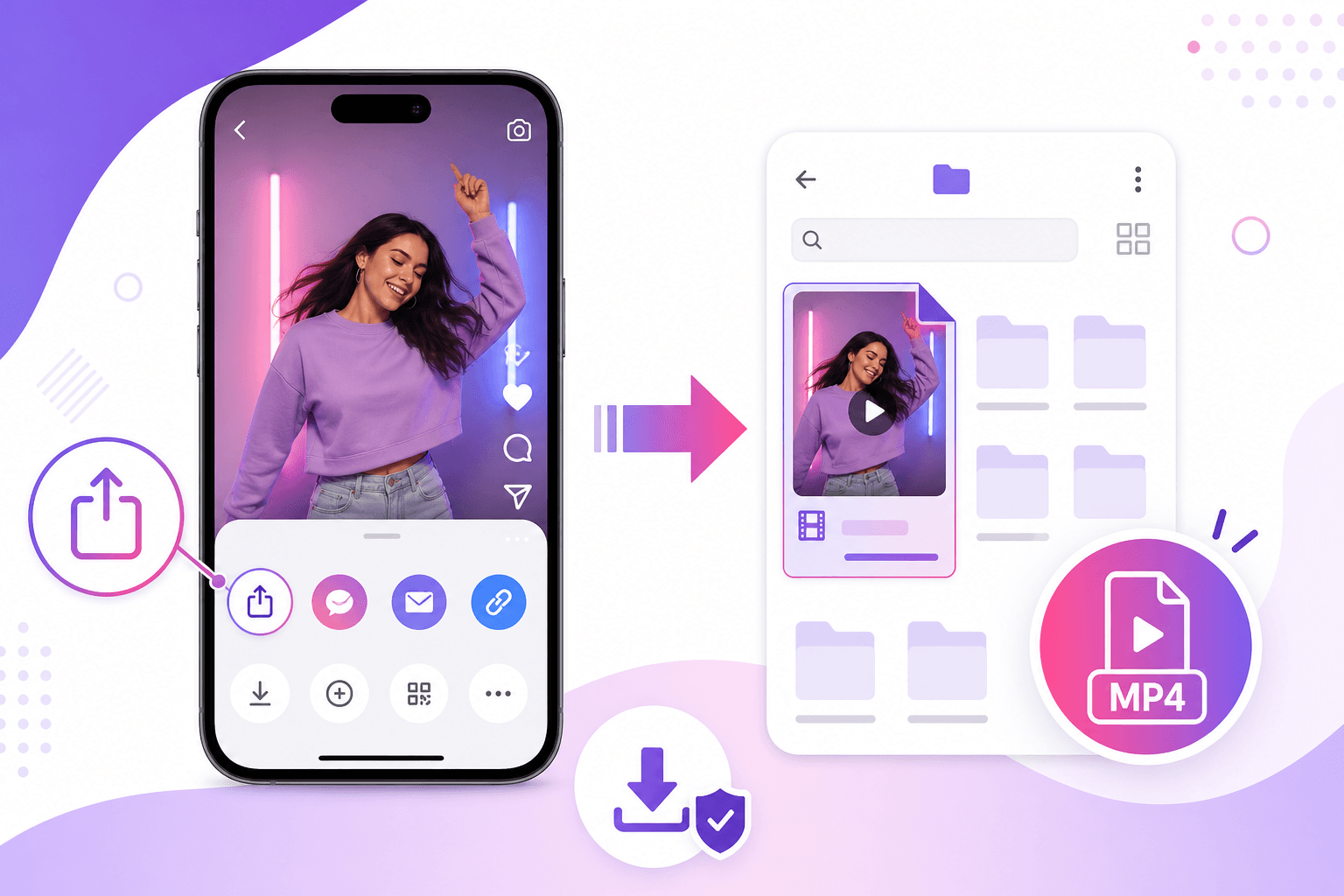
An instagram reel download gives you an MP4 file on your phone or laptop, not just a bookmark inside the app. Copy the Reel link, paste it into a free browser downloader, and save the video in under two minutes. This works on iPhone, Android, and desktop without installing anything from a random developer.
What to Know
- Bookmarks inside Instagram are not the same as a local video file.
- Public Reels from standard accounts usually download fine through browser tools.
- Copy the Reel URL, not the profile link or a carousel post address.
- Expect 720p or 1080p. Instagram compresses every upload.
- Screen recording works but captures notifications and lower audio quality.
When an Instagram Reel Download Makes Sense
Content researchers save competitor Reels to study pacing and hooks. Travel creators archive location clips they might reuse in a longer vlog. Fitness coaches collect demo videos for client homework. Musicians grab live session snippets before Instagram's compression buries the audio detail.
Saving locally also helps when you travel with spotty data. A folder of reference Reels on your phone beats scrolling the feed to find one clip you saw last Tuesday. Just respect copyright. Download for personal reference, client work with permission, or content you own. Reposting someone else's Reel without credit is still a bad idea.
What Instagram Actually Lets You Do
The in app save button stores a Reel in your Saved collection. You can watch it later inside Instagram, but you cannot export that file to iMovie or CapCut. Some creators turn on the Allow viewers to download toggle, which adds a download icon on their Reels. Most accounts leave it off.
Screen recording works in a pinch, but you capture notifications, status bars, and lower quality audio. A proper instagram reel download pulls the hosted video file at the best resolution the platform exposes. Results vary by upload, but browser tools typically beat a screen capture.
Step 1: Copy the Reel URL
Open the Reel in the Instagram app. Tap the paper airplane or share icon, then Copy Link. On desktop, open the Reel in a browser tab and copy the address bar. Links look like instagram.com/reel/ followed by a string of letters and numbers.
Carousel posts need a different approach. This guide targets single video Reels. If you need a photo from a carousel, copy the specific post URL while viewing that slide, not the profile homepage.
Step 2: Open a Browser Downloader
Go to our Instagram Reel downloader or the multi-platform downloader. Paste the Reel link into the URL field. The same page handles TikTok, YouTube Shorts, and other platforms if you mix sources in one workflow.
No login required. No extension to install. The tool reads the public URL and contacts Instagram's content delivery network to locate the video stream.
Step 3: Process the Link
Hit download or the equivalent button. The tool resolves the stream and prepares a direct file link. This usually takes a few seconds. If nothing happens, check that the Reel is public and the URL is complete.
Viral Reels under heavy load might add a short wait. Refresh and retry once before assuming the link is broken.
Step 4: Save the MP4 File
On iPhone, tap the download link and choose Save to Files or Save Video. On Android, the file lands in Downloads unless you pick another folder. Desktop users can right click the link and choose Save Link As. Rename the file something descriptive so you can find it later.
Play the file once to confirm audio sync and orientation. Vertical video should fill the frame without letterboxing unless the creator added black bars on purpose.
Quality, Watermarks, and Audio
Instagram re encodes every upload. You will not get a true 4K master unless the creator uploaded at that resolution and Instagram preserved it. Most Reels save at 720p or 1080p, which is enough for reference and social reposts at the same aspect ratio.
Reels downloaded through browser tools generally do not add a new watermark on top. You might still see the creator's original text overlays because those are part of the video itself. Audio saves as AAC inside the MP4 container. If you need a separate audio track, import the file into an editor and export audio only.
Mobile vs Desktop: Which Works Better
Desktop Chrome or Firefox gives you more control over filenames, which helps if you batch download Reels for a mood board. Mobile is faster when you spot a Reel in the feed and want it before the creator deletes it.
Avoid random apps on the App Store that ask for broad permissions or show aggressive ads. A browser based instagram reel download keeps the process visible. You see exactly what URL is fetched and where the file goes.
Pair Downloads With Better Captions
Saving reference Reels is half the workflow. Writing captions that match the energy of your own posts is the other half. When you study a saved Reel, note what the caption adds that the video does not say out loud. That gap is where your own voice should show up.
Our Instagram caption generator drafts multiple caption angles from a topic you provide. Edit the first line until it sounds like you, then publish. Download for research, generate for creation.
Troubleshooting Failed Downloads
Private accounts block public tools. Copy links only from Reels you can open in a browser without logging in. Link format errors happen when you copy a profile URL instead of a specific Reel address.
Expired or deleted Reels cannot be recovered. Confirm the post still opens in Instagram before retrying. Rate limits from bulk downloads clear after a short pause.
Organizing Saved Reels on Your Device
Create a folder per project instead of dumping everything into Downloads. Name files with creator handle and topic, like @studio_lighting_three_point_setup.mp4. If you reference Reels in team docs, paste the original Instagram URL next to the local filename so anyone can trace the source.
Cloud backup helps when you switch phones. Save to iCloud Photos or Google Drive if you collect more than a handful of reference clips.
Frequently Asked Questions
Can you download Instagram Reels without an app?
Yes. A browser-based instagram reel download tool only needs the Reel URL. Paste it into the downloader, wait a few seconds, and save the MP4. No App Store install, no APK, no account creation required for public Reels.
Does Instagram let you save Reels natively?
Instagram lets you bookmark Reels inside the app, but that is not the same as owning the file. Some creators enable a download button on their Reels. Most accounts leave it off. Browser tools pull the hosted video stream directly.
What quality do downloaded Reels have?
Most Reels save at 720p or 1080p depending on what the creator uploaded and what Instagram preserved after compression. You will not get a true 4K master unless the source was uploaded at that resolution.
Can I download Reels from private accounts?
Public downloaders only work with public Reel URLs. Private profiles, close friends lists, and Stories from accounts you do not follow will not resolve. Copy a link only from Reels you can open without logging in.
Is downloading Instagram Reels legal?
Saving your own Reels for backup is straightforward. Downloading someone else's content for personal reference is common but may conflict with Instagram's terms. Reposting without permission or credit can trigger copyright claims. Ask when unsure.
Save Your First Reel Now
Copy the link, paste it, download the MP4. Use the free social media downloader for Instagram and other networks from one page. Need caption ideas for your next post? Try the Instagram caption generator after you finish saving.